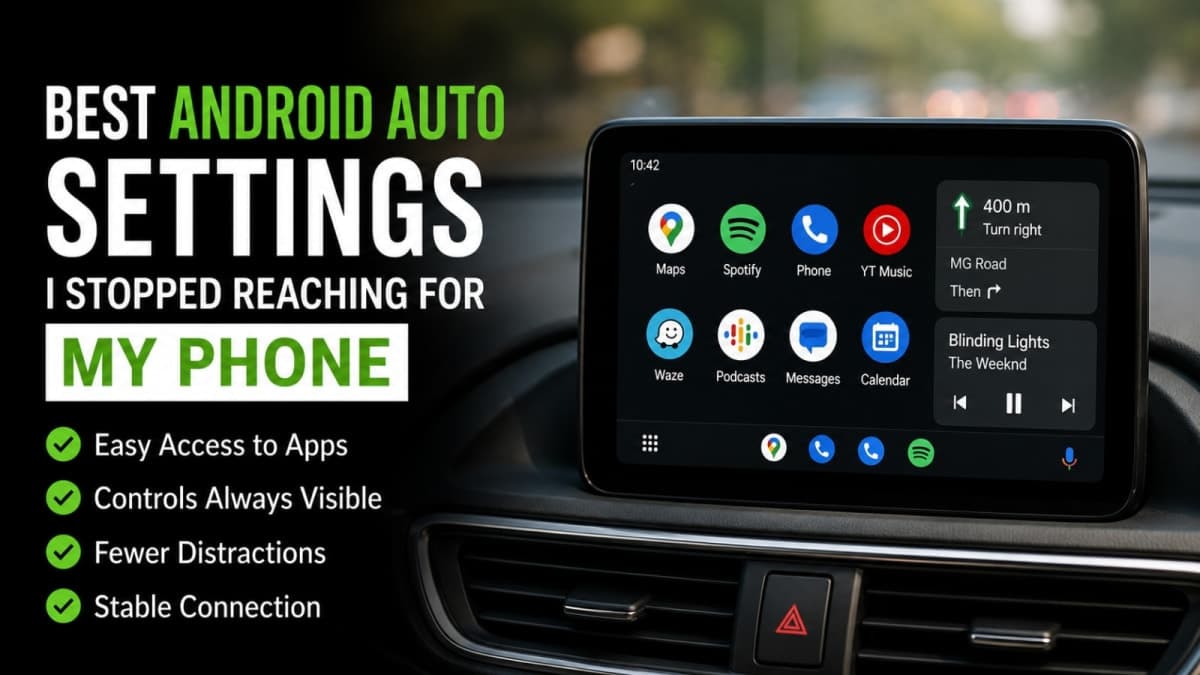
I stopped reaching for my phone after fixing these Android Auto settings. The default layout forces you to hunt for apps, media controls vanish when Maps is full-screen, and message previews keep pulling your eyes off the road. A handful of permanent changes on the phone itself remove most of those reasons. The result is fewer glances, fewer grabs, and a calmer drive in Indian traffic.
These adjustments work on both wired and wireless Android Auto. They stay on your phone, so they travel with you between cars. No extra apps or paid features are required.
Put your real apps at the top of the launcher
The default launcher order is rarely the order you actually use. You end up scrolling past rarely opened apps every time you want Maps, Spotify or your preferred navigation tool. That scroll is enough to make you reach for the phone instead of using the car screen.
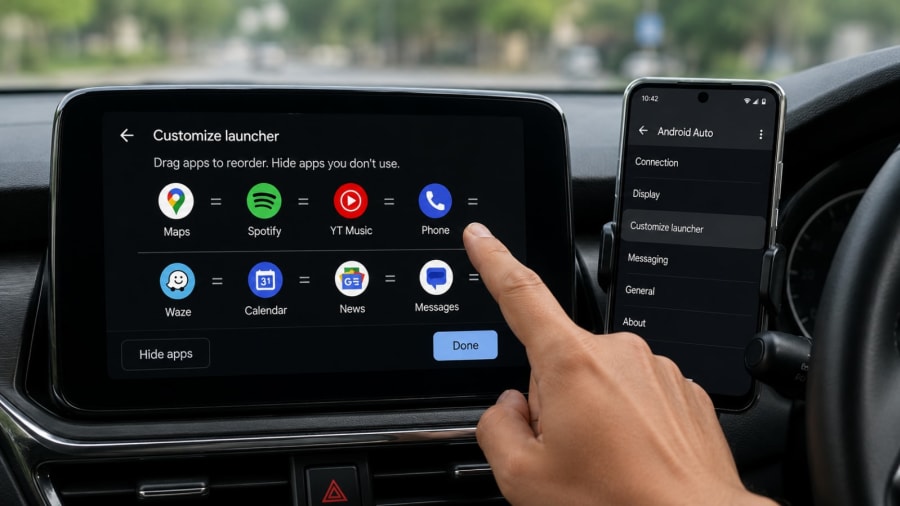
Open the Settings app on your phone and search for Android Auto. Tap Customize launcher. You will see every app that can appear on the car display. Hide the ones you never open while driving. Drag your daily apps to the top positions. Maps, your music or podcast app, and any frequent assistant shortcuts should sit first.
The new order takes effect after you exit and restart the Android Auto session. Once set, the home screen shows what you need without hunting. In dense city traffic this single change cuts a surprising number of phone reaches.
Turn on taskbar widgets so controls stay visible
When you open Maps full-screen, media controls normally disappear. When you open a music app full-screen, turn-by-turn directions vanish. The only way to change tracks or check the next junction is to switch apps or grab the phone. Taskbar widgets fix that.
In the same Android Auto settings menu, find the Display section and toggle Taskbar widgets on. The bottom strip now shows a compact media player while Maps is open, or a compact navigation strip while media is open. You can pause, skip or check the next turn without leaving the current app.
On smaller car screens this is especially useful. The main content stays large while the secondary controls remain one glance away. No more switching just to adjust volume or confirm a junction.
Quiet the message previews that pull your eyes
Full message notifications with sender name and first line are useful at home. In the car they are a distraction magnet, especially with passengers present. You do not need the exact text to know something arrived.
In Android Auto settings, leave Show message notifications enabled so you still get a quiet alert. Turn off Show first line of messages. Also turn off Show group conversations if your group chats are frequent and noisy. Optionally disable Play message chime or Play AI message summaries so media is not interrupted by spoken previews.
You still know a message arrived. You no longer see private content or feel the urge to unlock the phone and reply. For shared family cars in India this also protects privacy when relatives or colleagues are sitting beside you.
The goal is not to make Android Auto silent. It is to make every piece of information on the car screen useful enough that the phone can stay in the cup holder or pocket.
Stop music from blasting the moment you connect
By default Android Auto often resumes the last media app at whatever volume the car or phone last used. In the morning or with children in the back this can be jarring. It also creates an immediate need to adjust volume with the phone or steering controls.
In Android Auto settings under General, turn off Start music automatically. You still choose what to play when you want it. Nothing starts without a deliberate action. If you prefer automatic start but at a safer level, some cars remember the last volume; the phone-side toggle simply prevents the surprise.
Fix the connection problems that force you to grab the phone
Even a perfect layout is useless if Android Auto drops or refuses to launch. Two settings solve the majority of modern disconnect and launch failures.
Battery unrestricted. Android’s battery optimization can kill Android Auto in the background, especially on wireless connections. Go to Settings → Apps → Android Auto → Battery (or App battery usage) and set it to Unrestricted. Do the same for Google Play services. This single change stops many random disconnects during longer drives.
Default USB configuration. For wired use, enable Developer options (tap Build number seven times in About phone). Then open Developer options → Default USB configuration and choose File transfer or File transfer / Android Auto. The phone now presents the correct mode the moment the cable is plugged in, without waiting for an unlock.
If wireless still drops, a temporary test is to enable Airplane mode and then manually re-enable Wi-Fi and Bluetooth. This stops the phone hunting for cellular signal and stabilizes the link. Use it only as a diagnostic; it blocks normal calls unless Wi-Fi calling is active.
Clearing the cache of the Google app and Android Auto can also restore a non-responsive Assistant. Settings → Apps → Google → Storage → Clear cache, then repeat for Android Auto.
Problem | Setting to change | Where to find it |
|---|---|---|
Apps hard to reach | Customize launcher order | Android Auto settings |
Controls disappear | Taskbar widgets on | Android Auto → Display |
Message previews distract | Hide first line + group chats | Android Auto → Messaging |
Music starts too loud | Start music automatically off | Android Auto → General |
Random disconnects | Battery unrestricted | Phone Settings → Apps |
Won’t start while locked | Start while locked + USB default | Android Auto + Developer options |

Extra quiet improvements that help in Indian conditions
Maps day/night mode can flip too often under flyovers or in tunnels. In Android Auto settings you can lock Maps to a preferred theme so the display stays consistent. Some versions also let you force day or night permanently via developer options if the automatic switch is unreliable.
Voice commands work better once the connection is stable. After the battery and USB fixes, Google Assistant (or Gemini where available) responds more reliably to “navigate to” or “play” without needing a second attempt that tempts you to look at the phone.
If you share the car, these phone-side settings do not force themselves on other drivers. Each person keeps their own launcher order and notification preferences. That makes the setup practical for families and office-pool vehicles common in Indian cities.
For more phone and car tips that keep focus on the road, see more guides on the site.
What actually changes after one drive
After these adjustments the car screen becomes the primary interface. You open the apps you need without scrolling. Media and navigation stay visible together. Messages announce themselves without revealing content. Music starts only when you choose it. The connection holds through longer city or highway runs.
You still use steering-wheel controls and voice for the rest. The phone stays put. That is the entire point. None of these settings require new hardware or paid services. They simply stop Android Auto from fighting you with defaults that were never designed for real driving.
Make the changes once, restart the session, and drive. The urge to reach for the phone drops quickly once the screen already shows what you need.