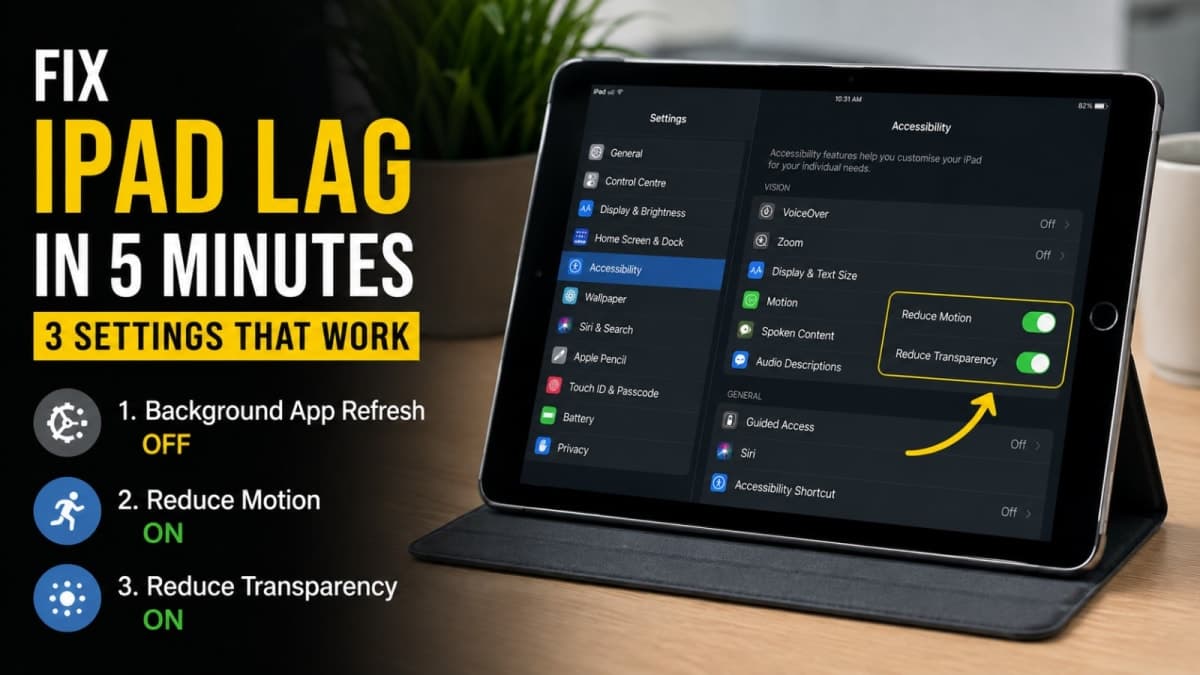
Want to fix iPad lagging on an older model without buying new hardware? I turned off three settings and my 8-year-old iPad Pro finally felt usable again. After the latest iPadOS update apps took ages to open, Split View lagged badly, and simple window maximising felt stuck. The three changes were Background App Refresh off, Reduce Motion on, and Reduce Transparency on. Multitasking times dropped sharply and the device became responsive again without a factory reset.
These steps cost nothing and take under five minutes. They matter most on older iPads whose chips and RAM are under more pressure from modern iPadOS features. Newer models already handle the same effects smoothly, so the gain is smaller.
Why older iPads start lagging after updates
Newer iPadOS versions add visual effects, background activity and multitasking features that assume more processing power and memory than an older chip has. Background App Refresh keeps many apps checking for new data even when you are not using them. That constant work competes for limited RAM. Motion effects and transparency require continuous graphics compositing. On an ageing GPU the result is delayed animations, slow app switching and the feeling that the whole interface is fighting you.
Battery health and nearly full storage can make the problem worse, but the three settings below address the most common software causes. They do not fix a failing battery or a drive that is 95 percent full, yet they recover a large part of the lost responsiveness for everyday use.

Setting 1: Turn off Background App Refresh
This is the biggest single change for most older devices. Apps are allowed to wake up and update content in the background. On modern hardware the impact is small. On an older iPad Pro the constant background work stresses limited RAM and can make the interface lag when you try to open or switch apps.
Go to Settings → General → Background App Refresh. At the top, set it to Off. Every app stops refreshing itself when you are not using it. You can still open any app and pull to refresh or wait a second for it to load the latest data. Notifications that use push still arrive for most services.
If you rely on a couple of apps to stay current (mail, messaging, weather), leave the master switch on and turn off only the apps you do not need. For maximum effect on an old device, switch the whole feature off. Battery life usually improves as a side benefit because the device spends less time waking radios and processors.
What you lose. Some widgets and app badges may update only when you open the app. Live Activities that depend on background refresh can become less timely.
What you gain. Less background CPU and network activity, more free RAM for the apps you are actually using, and noticeably snappier switching.
Setting 2: Turn on Reduce Motion
iPadOS uses zoom, slide and parallax animations throughout the interface. These look polished on new hardware. On an older GPU they add measurable delay every time you open an app, switch windows or return to the Home Screen.
Go to Settings → Accessibility → Motion. Turn on Reduce Motion. Zoom and slide transitions become simple cross-fades. The parallax effect on wallpapers and icons stops. The interface feels flatter but responds much faster.
In one set of tests on an older iPad Pro, maximising a window dropped from roughly nine seconds to one second after this change combined with Background App Refresh off. Split View improved from about eight seconds to two seconds. Exact times vary by device and storage state, but the direction is consistent: less motion work means the limited GPU finishes the job sooner.
Most people adapt to the simpler transitions within a day. If you later want the full effects back, the toggle is easy to reverse.
Setting 3: Turn on Reduce Transparency
Many iPadOS surfaces use blur and transparency—Control Centre, the dock, notification shade, keyboard background. Rendering those effects continuously costs graphics power. On older hardware the cost shows up as stutter when you pull down Control Centre or type.
Go to Settings → Accessibility → Display & Text Size. Turn on Reduce Transparency. Blurred backgrounds become solid. Contrast often improves as a bonus, which can make text easier to read.
This change alone may not transform app-switching times the way Reduce Motion does, but it cleans up the remaining visual load. Combined with the first two settings it contributes to an overall smoother feel, especially in Control Centre and keyboard use.

Extra steps that help if lag remains
After the three main toggles, a few more actions can reclaim further performance:
Free storage space. When free space drops very low the system struggles. Delete large unused apps, old downloads and videos. Offload unused apps from Settings → General → iPad Storage if you want to keep the documents.
Clear Safari data. Settings → Safari → Clear History and Website Data. This removes accumulated website data that can slow browsing. You will need to sign in to sites again.
Restart. A simple restart after the setting changes clears residual processes. Hold the power button and volume button (or Home + power on older models) until the slider appears, power off, wait ten seconds, then power on.
Check battery health. If Maximum Capacity has fallen significantly, the system may throttle performance to avoid unexpected shutdowns. A battery service can restore full behaviour, though cost and availability in India vary by model and city.
Avoid constantly force-closing every app from the App Switcher. iPadOS is designed to manage suspended apps efficiently. Closing them all every time can actually increase work when you reopen them.
Setting | Where to find it | What it does |
|---|---|---|
Background App Refresh | Settings → General → Background App Refresh | Stops apps updating content when not in use |
Reduce Motion | Settings → Accessibility → Motion | Replaces zoom/parallax with simple fades |
Reduce Transparency | Settings → Accessibility → Display & Text Size | Removes blur effects on system surfaces |
On older hardware the combination of less background work and fewer visual effects recovers most of the responsiveness lost to recent iPadOS versions. You do not need to buy a new iPad to make the current one usable again.
What to expect after the changes
App opening and window switching should feel markedly quicker. Split View and Slide Over become practical again instead of exercises in patience. Battery life often stretches further because the device spends less time on background tasks and GPU effects. The interface looks simpler—fewer animations, solid instead of blurred panels—but the trade-off is worth it when the alternative is constant lag.
These settings survive restarts and software updates. Re-check them only if a major iPadOS version resets accessibility options, which is uncommon. If you share the iPad, note that the changes apply to the whole device.
For more ways to keep older Apple devices useful longer, see more guides on the site. An ageing iPad Pro can still handle reading, video, light editing and everyday apps once the software load is reduced to what the hardware can manage comfortably.
Make the three changes, restart once, and use the device normally for a day. The difference is usually obvious within the first hour of real work.